Tags

Tags are colored labels that can be attached to hosts and are used to group, identify or annotate assets on the monitored network. A host can carry one or more tags. They are shown as colored badges next to the host through the UI, and can be used to filter which alerts get delivered to a given notification recipient.

Internally, tags are implemented as a 64-bit bitmap associated with each host, thus the number of available tags is:

  • 32 (Bits 0-31) reserved for built-in tags, which ntopng assigns automatically based on what it observes on the network.

  • 32 (Bits 32-63) for user-defined tags, which administrators create, name and assign manually.

Both kinds of tags are managed from the same Tags page, reachable from the Settings section of the System interface, which lists every tag together with its name, color and description.

Built-in Tags

Built-in tags are read-only: their name and description cannot be changed (the corresponding fields are disabled in the edit dialog), although their color can still be customized to fit personal preference, and a TTL can be set for them (see Asset Tag Expiration (TTL)). They cannot be deleted, and there is no “reset” action for them.

ntopng currently defines the following built-in tags:

Tag

Assigned when…

DNS Server

the host is configured as a DNS server, or has been observed acting as one

NTP Server

the host is configured as an NTP server, or has been observed acting as one

DHCP Server

the host is configured as a DHCP server, or has been observed acting as one

SMTP Server

the host is configured as an SMTP server, or has been observed acting as one

Network Gateway

the host is configured as a network gateway

IMAP Server

the host has been observed acting as an IMAP server

POP Server

the host has been observed acting as a POP server

HTTP Server

the host has been observed acting as an HTTP server

SSH Server

the host is configured as an SSH server, or has been observed acting as one

RDP Server

the host is configured as an RDP server, or has been observed acting as one

Modbus Server

the host has been observed acting as a Modbus (ICS/SCADA) server

S7comm Server

the host has been observed acting as a Siemens S7comm (ICS/SCADA) server

Profinet Server

the host has been observed acting as a Profinet (ICS/SCADA) server

Non PQC Compliant

a TLS flow to/from the host has been detected using cryptography that is not resistant to quantum computer attacks (Post-Quantum Cryptography)

PowerShell Server

the host is configured as a PowerShell server

FTP Server

the host is configured as an FTP server

Windows Domain Controller

the host is configured as a Windows Domain Controller

Windows, macOS/iOS/iPadOS, Android, Linux, FreeBSD

this is the Operating System of the host, as detected by ntopng (see Operating System Tags below)

The DNS, NTP, DHCP, SMTP, SSH and RDP Server tags are assigned either because the host has been explicitly configured as such (under Network Configuration) or because ntopng has observed it providing that service on the network. The Network Gateway, PowerShell Server, FTP Server and Windows Domain Controller tags are assigned only when the host is configured as such. The remaining server tags (IMAP, POP, HTTP, Modbus, S7comm, Profinet) are assigned purely based on traffic observation. The Non PQC Compliant tag is instead set the first time a flow risk is raised on a TLS connection indicating non-Post-Quantum-safe cryptography, and it is applied to whichever of the client/server hosts is responsible for it.

Built-in tags are computed on the fly and are not persisted to disk: they always reflect the current state of the host.

Operating System Tags

A host whose Operating System is known is tagged with it: Windows, macOS/iOS/iPadOS, Android, Linux or FreeBSD. These tags follow the Operating System that ntopng reports for the host, that is learnt from the traffic of the host itself (mainly the fingerprint of its TCP connections, but also DHCP, the HTTP User-Agent, the information received from nProbe and the network discovery).

Unlike the other tags, a host (and its asset) has at most one of them: when a different Operating System is detected, the new tag replaces the previous one. This means that the tag of a host that is seen with more than one Operating System (e.g. a host running virtual machines, doing NAT or sharing its connection) changes over time.

The assets already in the inventory when these tags have been introduced are tagged, the first time ntopng is started, with the Operating System they are stored with.

User-Defined Tags

User-defined tags consists of customizable tag slots that administrators can freely name, color and describe from the Tags page. By default they are named Customizable_Tag_32 .. Customizable_Tag_63, with no color and an empty description, until edited.

From the Tags page, clicking the edit (gear) icon on a tag opens a dialog where the following can be changed:

  • Name: alphanumeric, no spaces, at least 2 characters long.

  • Color: the badge color used to render the tag everywhere in the UI.

  • Description: a free-text field to explain the purpose of the tag.

  • Applications: one or more network applications that automatically tag matching flows and hosts with this tag (Enterprise L or above). See Application- and Risk-Based Tagging below.

  • Flow Risks: one or more flow risks that automatically tag matching flows and hosts with this tag (Enterprise L or above), working just like Applications above. See Application- and Risk-Based Tagging below.

  • TTL: disabled by default, meaning the tag never expires. When enabled, it is the number of days (from 1 to 365) after which the tag associated to an asset expires, unless it is refreshed (Enterprise L or above). See Asset Tag Expiration (TTL) below.

A user-defined tag can be reverted to its factory defaults (default name, black color, empty description, no TTL) using the Reset action, which also removes it from any host and asset it was assigned to.

Unlike built-in tags, user-defined tags are not computed automatically: they must be explicitly assigned to a host from that host’s configuration page (Host Details -> Config), where a User Defined Tags multi-select lists all the available user-defined tags. The selection is stored persistently, keyed by the host MAC address (for hosts with a known/local MAC) or by IP address and VLAN otherwise, so the assignment survives ntopng restarts and, for MAC-keyed hosts, host IP address changes (e.g. via DHCP). For a host seen with the same IP address on several VLANs (one asset, see Assets Inventory), the tags set or removed on one of them apply to the host on all its VLANs.

Application- and Risk-Based Tagging

Note

Enterprise L license or above is required

In addition to manual assignment, a user-defined tag can be bound to one or more network applications (i.e. nDPI protocols) and/or one or more flow risks, directly from the tag edit dialog. Once one or more applications and/or flow risks are associated with a tag, ntopng starts tagging automatically: every time a flow is classified as one of the linked applications, or raises one of the linked flow risks, the flow itself is immediately tagged, and the same tag is persistently assigned to the flow’s local client host, exactly as if it had been set by hand from that host’s configuration page. Flow risks work exactly like applications in every other respect described below.

From that moment on the tag behaves just like any other user-defined tag and is visible wherever tags normally appear: on the matching flows in the Live Flows and Historical Flows pages, on the client host in the Hosts and Host Details pages and, being now an ordinary host tag, on the corresponding entry in the assets database - so the Assets page can be filtered by that tag to list every asset that has been observed using the linked application(s).

This effectively turns a tag into a standing rule (“tag every host that talks a given application”) that is kept up to date automatically, rather than a one-off manual annotation, making it a convenient way to build an inventory of hosts by behavior rather than by identity.

Example: a network administrator wants to spot which PCs on the LAN are still accessing mail servers in plaintext instead of over the encrypted protocols the same mail server also supports - typically a sign of a misconfigured or outdated mail client.

  1. From the Tags page, pick one of the customizable tags (e.g. Customizable_Tag_62) and click its edit (gear) icon.
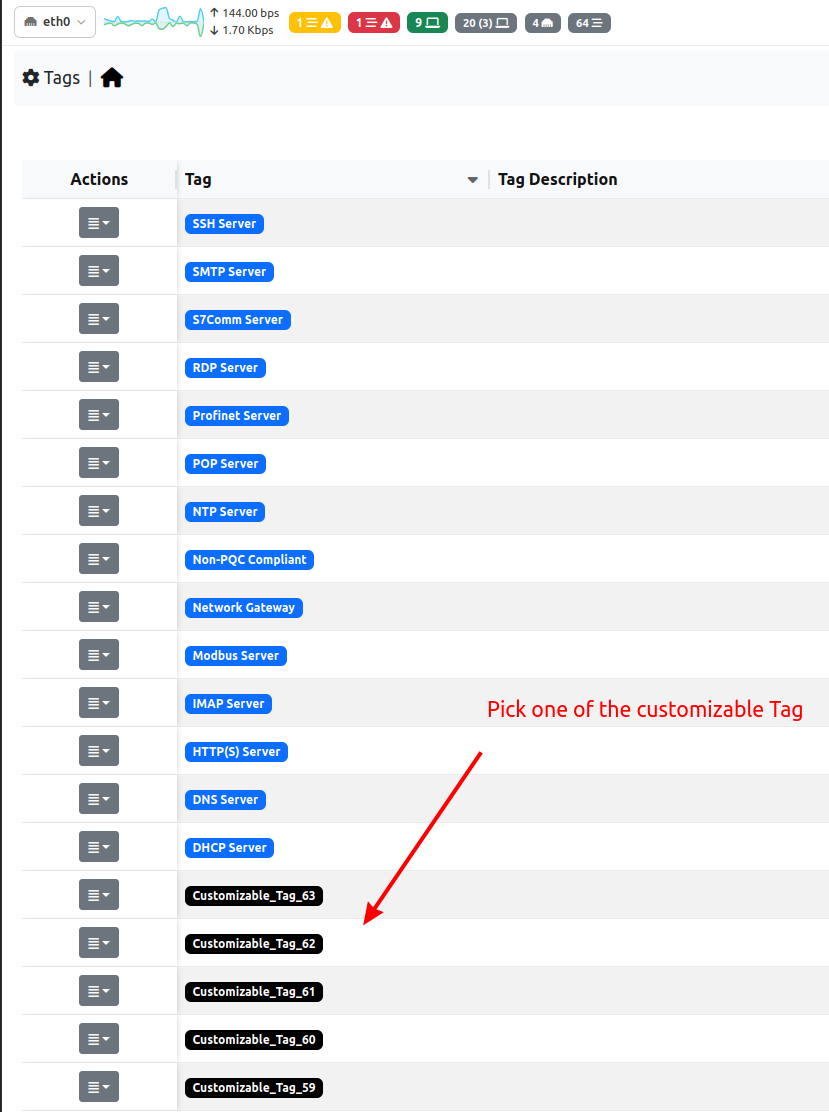
    Tags page listing built-in and user-defined tags
  2. Rename it to UnsafeMail, pick a color, and in the Applications field add IMAP, POP3 and SMTP, leaving their encrypted counterparts (IMAPS, POPS, SMTPS) out. Enable the TTL and set it to 7 days (see Asset Tag Expiration (TTL)). Save.
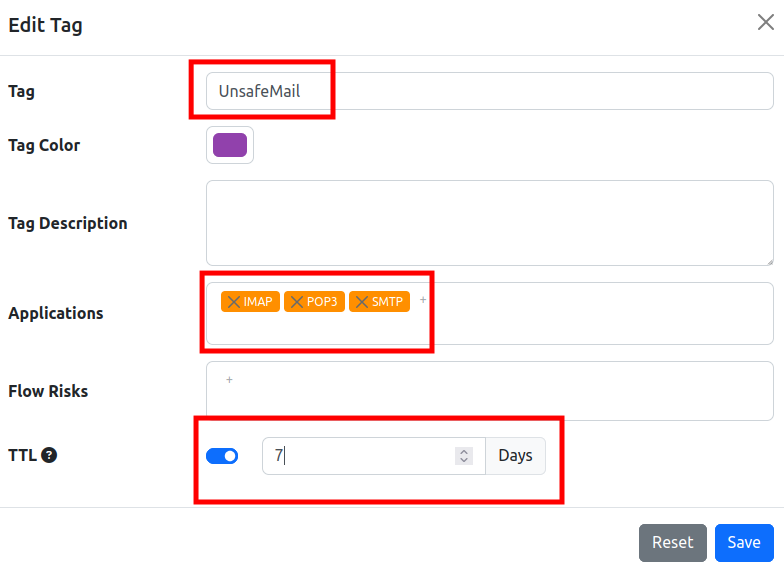
    Tag edit dialog with IMAP, POP3 and SMTP added to the Applications field, and a TTL of 7 days
  3. As soon as any host on the network exchanges mail over one of the three plaintext protocols, ntopng tags both the flow and the client host UnsafeMail - visible right away on that host’s Host Details page.

    Host Details page showing the UnsafeMail tag badge
  4. Open the Assets page and filter by the UnsafeMail tag to get the full, always up-to-date list of misconfigured hosts network-wide, without having to hunt for them manually in the flow tables.

    Assets Inventory page filtered by the UnsafeMail tag
  5. The administrator then reconfigures the mail clients one by one. No further action is needed in ntopng: thanks to the TTL, a PC that stops using the plaintext protocols loses the UnsafeMail tag about 7 days after its last plaintext mail flow, and disappears from the filtered list by itself. A PC that has not been fixed (or that has been misconfigured again) keeps the tag, as every new plaintext mail flow refreshes it. The filtered Assets page therefore always shows the work still to be done, rather than every host that has ever used plaintext mail.

    Without a TTL the tag would stay on those assets forever, and the list could only grow: the administrator would have to remove the tag by hand from every fixed host, or could not tell the fixed hosts from the ones still to be fixed.

Asset Tag Expiration (TTL)

Note

Enterprise L license or above is required

The assets inventory remembers the hosts seen on the network, together with their tags, long after those hosts have stopped doing what earned them a tag. By default a tag stays on an asset forever: a host that was a DNS server one year ago, or that once used an outdated application, is still listed as such. This is the right behaviour for tags used as permanent annotations, but it makes tags describing a behaviour less and less accurate over time.

The TTL (Time To Live) of a tag tells for how long the tag is kept on an asset when nothing confirms it anymore. It is set in the tag edit dialog, in days (from 1 to 365), for both built-in and user-defined tags. When the TTL is disabled (the default) the tag never expires.

To set the same TTL on many tags at once, use the Set TTL button at the bottom of the Tags page. The TTL is set on all the tags or, when All Tags is disabled, on the selected ones.

A tag on an asset is refreshed every time ntopng has a new evidence of it:

  • for the server tags (DNS Server, HTTP Server, …), when the host is observed providing that service again;

  • for the Non PQC Compliant tag, when a new non-Post-Quantum-safe flow of the host is detected;

  • for the Operating System tags (see Operating System Tags), when the same Operating System is detected again, e.g. when the host opens a new TCP connection;

  • for the tags bound to applications or flow risks (see Application- and Risk-Based Tagging), when a new matching flow of the host is detected;

  • for the tags assigned by hand, when the tag is assigned. Nothing refreshes them afterwards, so a tag assigned by hand with a TTL is a temporary annotation that removes itself (e.g. “under maintenance” for a week).

If a tag is not refreshed for longer than its TTL, it is removed from the asset. For example, with a TTL of 30 days on the DNS Server tag, an asset that has not been seen answering DNS queries for 30 days is no longer listed as a DNS server; if it starts again, the tag is back. Every tag added to or removed from an asset, with its cause, is recorded in the assets journal.

Things worth knowing:

  • Tags assigned because the host is listed in the Network Configuration (DNS, NTP, DHCP, SMTP, SSH, RDP, PowerShell and FTP servers, Windows Domain Controllers, network gateway) never expire as long as the host is listed there, whatever the TTL: for a host seen on several VLANs, when it is listed with any of them. If the host is removed from the configuration, the tag expires as any other.

  • The TTL is in days and the expiration is checked periodically: a tag can be removed up to half a day later than its TTL, never earlier.

  • The expiration is about the assets, not the hosts. For the latter, the previously described rules apply.

  • An Operating System tag that expires is removed from the asset, but the Operating System reported for the asset is not changed. The tag is back as soon as the Operating System is detected again.

  • With a license below Enterprise L the TTL is not available, and the tags of an asset simply are the tags of its host (for a host seen on several VLANs, the tags of the host on all of them).

Tags on Flows

Flow tags are computed as the union of the user-defined tags currently assigned to its client and server hosts. Built-in (host-only) tags, such as DNS Server or Non PQC Compliant, are not propagated to flows: they only describe the host itself, and would otherwise appear on every single flow involving that host, which would not be very informative (e.g. DNS server).

In addition, a flow classified as an application, or raising a flow risk, bound to a tag (see Application- and Risk-Based Tagging) is tagged directly as soon as it is detected, regardless of the client/server union described above.

A flow that triggers an alert also gets the tags of the check that triggered it (see Check Tags).

Where Tags Are Shown

Tags (both built-in and user-defined) are displayed as colored badges in several places across the UI:

  • On the Host Details page, in the host summary table.

  • On the Behavioural Checks page, in the Tags column: the tags added to the alerts of each check (see Check Tags).

  • In the Flow Alerts and Host Alerts tables, in a dedicated Tags column. Since alerts are historical records, the tags shown are the ones that were active on the host/flow at the time the alert was generated, not the current ones, plus the tags of the check that triggered the alert.

  • On the Issues page (Enterprise XXL), in the Tags column and in the issue details: the tags of an issue are all the tags of its alerts, and the issues can be filtered by tag.

  • On the Assets page, as part of each asset’s details: the tags of a host, built-in and user-defined (assigned manually or through Application- and Risk-Based Tagging), are propagated to its corresponding entry in the assets database, where they are kept until they expire (see Asset Tag Expiration (TTL)).

Tags can also be used to filter traffic and assets across the UI (e.g. in the Flows and Historical Flows, the Alerts Explorer, and the Assets page).

Using Tags for Notifications

Tags can be used as an additional delivery criterion when configuring a notification Recipient, alongside Severity, Alert Category, Check Entity and Host Pool. When one or more tags are selected for a recipient, only the alerts carrying at least one of the selected tags are delivered to that recipient; all other alerts are filtered out for it. The tags of an alert are those of its host or flow (for Flow and Host alerts) and those of the check that triggered it (for alerts of any kind, see Check Tags). If no tag is selected (the default), no tag-based filtering is applied and alerts are delivered regardless of their tags.

This makes it possible, for example, to tag a set of business-critical hosts and configure a dedicated, high-priority recipient (e.g. a Slack channel or a PagerDuty integration) that only receives alerts related to those tagged hosts, while routing the rest of the alerts elsewhere.